|
<< Click to Display Table of Contents >> Version4.3 - 2013 |
  
|
|
<< Click to Display Table of Contents >> Version4.3 - 2013 |
|
Version 4.3.xx - 2013
More changes to screens, updated the help files, and added a new optional work order screen.
Totals for Version 4.3
•Additions: 41
•Changes: 37
Version 4.3.00 - Jun 3, 2013
•Fixed Markup in Inventory... sometimes it would change the retail price when adding back to the original default markup.
•Added Counters to the Work Order memo's so you can see how many characters are available.
•Added a completely new work order entry screen with the following new features:
a)The Parts, labor, vehicle, and customer information all show on the same screen.
b)Parts and Labor have the ability to do Edit in Place, which means you can edit on the same screen.
c)You can switch between edit in place and the normal editing of parts and labor. The program will remember your preference.
d)You can setup the default entry screen from the company setup area. It will default to the old editing screen if you do nothing at all.
e)You can switch between work order screens from the main work order browse. This makes it easy to try the new editing screen without switching to it.
f)You can turn off the special styler colors for this screen. Our default colors are faster and this allows the different tabs to have different colors (not possible with the built in color styler).
Version 4.3.06 - July 3, 2013
There are many changes in 4.3.01 through 4.3.06. Most of these are screen changes that we made while rebuilding the help files. During the rebuild of the help files, we found some inconsistencies in several lookups and screens.
•Changed the Labor Lookup to allow you to choose to lookup labor by description, or by category then description as a default.
•The labor lookup is now the same screen as the labor screen from the main menu.
•Changed the Special Lookup to allow you to choose lookup special by description, or by category / description as a default.
•The special lookup is now the same screen as the specials screen from the main menu.
•Changed and added new help screens to the help files.
•Fixed inventory quantities so if you are working with a work in progress, the inventory (for inventory items) is updated to match the on hold and inventory quantities.
•Changed the icon on the main work order browse screen to be a red X circle instead of the Exit icon. This saves confusion. The Exit icon should exit the entire program.
•Added - On the new work order screen, you can right click on the checkmark (normally used for completing an edit-in-place edit. Right clicking causes the current tab (Parts or Labor), to expand.
Version 4.3.07 - July 9, 2013
Version 4.3.08 - July 15, 2013
Version 4.3.09 - July 22, 2013
•Changed the button to alternate between Form Editing and Screen editing to an icon that looks like a green light. The light is on when editing with a form.
Version 4.3.10 - July 30, 2013
•Added Purchase Orders to the Orders. This is backwards compatible to the previous ordering system, but now you can add a purchase order, and the order items to that PO. You can use the same screen, or use the new PO screen. There is a new menu item for it under the Inventory/Labor, Order Receive Parts menu.
•Fixed a problem with Edit in place on the work order. The extended cost and extended price weren't really changing in the record, but it was displayed on the screen. This only happened if you changed the quantity using the edit in place. If you used the editing form, there was no problem.
Version 4.3.11 - August 2, 2013
•Worked more on the custom Invoice. We created #16 that you can now use. If you are going to modify the invoice, edit it, and do a 'save as' to a number above 100. (like invoice100.rpt).
•Added the ability to Email the invoices created with Report Manager. They work about the same. You click on the PDF and the Email Icon in the print preview, then when you exit the Email screen will display. From there you can send a note or pick a pre-made letter to send with the invoice as an attachment.
Version 4.3.12 - August 13, 2013
•Added: more fields to the Purchase Order.
•Added: more fields to the Vendor including Email, Website, Login User, Login Password, Fax phone.
•When selecting the vendor from the PO, the fields (that can be changed in the PO), are copied into the PO. For instance, the program copies the email from the vendor, but you can override the email address for the particular PO you're working on.
•Added: Email and PDF capability to the Purchase Order.
•Added: most of the new fields to the PO.
Version 4.3.13 - August 20, 2013
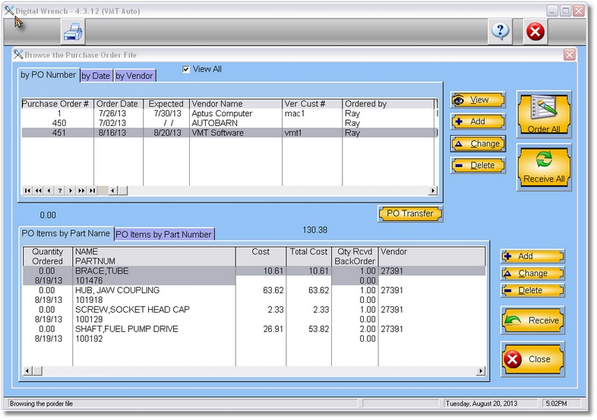
•Adjusted the PO Items so after they're ordered they will automatically affect the inventory (Parts List) to show the quantity ordered. Also made sure that when an ordered part is deleted, or the entire PO is deleted (but not completed), the inventory is also affected by reducing the number of parts on order.
•Added the receive button to the PO Screen.
•Added the Order All button to the PO Screen. This let's you place all parts on order automatically. The program simply writes in the order date and order time. A part is not considered ordered unless the order date and order time is filled in.
•Added the Receive All Button. This button cycles through all of the items for the selected PO, and allows you to receive each one individually. You just click OK to receive, you may cancel for parts that are not in yet.
•The Receive All button is now also a drag-and-drop. This means you can 'grab' the PO with your mouse and drag it onto the Receive All Button.
•The Receive Button is also a drag-and-drop.
•The quantity to be ordered is highlighted in red if the item has not been ordered (by filling in the order date and time).
•The quantity received is highlighted in red if the items have not yet been received.
•The backorder quantity is red if you have received something, but there are still more items on order.
Version 4.3.14 - August 23, 2013
Version 4.3.20 - August 26, 2013
•Added the PO List Tab to the Work Order Screen, on the right side near labor. It is Yellowish in color.
•Created a select button to select a purchase order
•Created buttons to edit the Order Items
•Created a print PO Button
•You can now drag a part from the left onto a set of order items and the item will be put into that PO. If there is no PO selected, it will be added to the Zero PO list which can be accessed later.
•If an item from the parts list is dragged and dropped onto the PO list, but it was already ordered, the program will ask you if you want to delete the item from the order list. If you say yes, it will delete the item from the order list. If you say no, it will bring up the order list that the part is being ordered from. This is a fast way to see the order list or PO for a part.
•In the parts list, you will see a Red X, that indicates it is on order. You can only order a part once. You can order the same part number again, but that item can only be ordered once.
Version 4.3.21 - August 27, 2013
•When Receiving All in a PO, if all have been received, the PO will be completed (by filling in the Date completed) automatically, and therefore filtered out (so you don't see it) on the main PO Screen.
•Added the filter to the PO Lookup Screen.
Version 4.3.22 - September 6, 2013
•Fixed Diagnostic invoices to print.
•Change diagnostic to keep diagnostic amount in the diagnostic field.
•Added the ability to refund or keep the diagnostic money if you change it back to an estimate. If you refund the money, it does not affect your cash files (drawer), but simply puts the diagnostic amount into the paid amount for that estimate, so the diagnostic amount will be applied to the invoice later.
•Added sorting ability to the work order browse screen. Click on the field you want to sort by and it will sort on that field, click on it again and it will sort in reverse. Secondary sorts are possible by holding the ctrl key down and clicking on another field. For instance, click on date to sort by date, the hold control key and click on time, now it's sorted by date AND Time.
•Changed customer referred list so you can type in anything you like, plus still use the built in list.
•Fixed: when deleting items out of a repair order that were from inventory, double items got added back to the inventory.
•Fixed: Items in inventory were sometimes getting adjusted from an estimate. Now estimates have no affect on the inventory. Inventory is only affected by a WIP or a completed invoice.
Version 4.3.23 - September 18, 2013
•Fixed Customer Balance. When transferring completed invoices to AR the customers balance didn't get stored in the customer record.
•Added the customer balance to the repair order screen under the 'more customer info' tab at the top.
•Added the customer balance to the customer editing screens.
•Fixed AR Report for all balances 'Print Receivable Balance' Report.
•Changed Tendered amounts in the cash records to be more accurate. If you are tendering more than the balance, the program asks if you want to apply the leftover money to pre-pay or change. If you pick change, the change will be subtracted from the amount of cash tendered, so you must have enough cash tendered to make change. The program will warn you if you try to get change from a check or credit card. Doing it this way allows the tendered amounts to be correct.
•The tendered amounts are added to Accounts Receivable (AR) if you have it. So if you split an amount tendered, then you will see multiple payments in the AR. Each payment will be for each payment type.
•The tendered amounts (Cash, Check, Credit Card), are now available in the custom invoice writer.
•If you choose to add the extra money from an invoice payment to pre-pay, that amount will show up in the cash file under Paid Deposits.
•Fixed the payments under Invoices with balances to update the AR correctly.
•
Version 4.3.24 - September 30, 2013
Version 4.3.25 - October 1, 2013
Version 4.3.26 - October 2, 2013
Version 4.3.30 - October 8, 2013
•Fixed - When printing invoices or estimates and you're using the custom invoices (report manager invoices), the program did not send via Email. Now, the program will ask you if you want to Email the invoice or estimate (only if the customer has an email address). The print preview will show as normal, but then when you exit the preview, it will create the pdf, and bring up the Email screen so you can send the pdf and a message to the customer.
•Added - New POS browse screen. The new POS browse screen only shows invoices (work in progress) and estimates for one customer. You do not need to select a customer (first) to add a new invoice, just select add, then select the customer. The select customer is to select a customer that you may already have an invoice or estimate. You still need to process each invoice separately. You get to this screen by clicking on the $ icon from the main screen. This screen does not have all the features available on the normal work order browse because the idea is to be simple, and normally just sell parts, although you can put labor and everything else on the invoice. Ideally it will work on a network (network version required), so one workstation can just handle sales at the counter. You can setup the workstation to only show parts via the company setup (each computer) section.
•The work order screen is exactly the same, but it will select the entry field on the bottom so you can just scan or type in the barcode of the parts.
Version 4.3.31 - October 9, 2013
Version 4.3.32 - October 23, 2013
Added Capability for VMT Software to update Digital Wrench via Internet. This works great for subscriptions. To make this work, get a "POS" number from VMT and enter it into the Setup / Customer Number form. From then on, once you get your invoice from VMT (you must give VMT permission to do automatic payments), you simply go to File, click on Update Expiration, and click on Get Online Code. If it worked, it will tell you it updated the expiration date for your subscription.
Version 4.3.33 - October 25, 2013
•Added Insurance information to the Simplified Work Order Screen.
•Added a new BIG memo to the Customers Vehicle record. This is 5000 characters and will allow you to paste in information about the customers vehicle. It does not print on the invoice.
•Added a picture to the customers vehicle.
•Added the picture of the customers selected vehicle in the repair order screen under the vehicle tab.
•Added a button to copy the VIN to the windows paste buffer so you can paste the VIN into another program or web page for vehicle lookup/parts lookup.
•Fixed the automatic update codes to also update the support expiration date so you'll be able to download the free upgrades to the program while you have support or your subscription.
•Added Drive Type (Shaft, Chain, Belt, Electric) to the Vehicle Record (great for motorcycle shops).
Version 4.3.34 - October 28, 2013
Added new Updates screen so you could view what changes are going to be made before you update the software.
Version 4.3.35 - November 1, 2013
•Added Unit Field to the vehicle record. The vehicle field correlates to the Tag/Unit# field in the repair order. When selecting a vehicle, the unit field will copy to the repair order, if there is nothing in the Tag/Unit# in the repair order. This way you can still type in a different unit# in the repair order than what is in the vehicle record.
•Moved the Browse Vehicles Menu option from the Inventor/Labor Menu to the Customer Menu.
•Added a Markup Type in the Company Setup. It defaults to the current markup type, which is a Margin Percentage, versus a markup percentage. This changes the way the markup is calculated when you figure the retail price from the cost. Margin Percentage is the better way to go.
•There is a % button below the cost. This will help you calculate the markup from a price. For instance, if you put in a cost of $100, and a price of $150, the margin markup would be 33.33%, and the percentage markup would be 50%. To copy the markup value to the markup field, just click on the margin% or markup% button. This might change the retail by a penny or two. For instance in this example, it changes the retail to 149.99. This is due to rounding. If you still want $150, make the markup field 0.00 so it won't calculate the retail value.
Version 4.3.36 - November 6, 2013
Version 4.3.37 - November 11, 2013
•Fixed: When transferring from a completed invoice back to a WIP, the invoice, items, and payments were supposed to also get deleted. Because this didn't work, there were errors and duplicate line items in the AR invoice. This has been corrected.
•Fixed: recalculation of customer balance when transferring a completed invoice back to a WIP.
•Fixed. When adding a labor record (not choosing from the labor list), the wholesale rate did not get copied from the company setup... now it does if the customer is a wholesale customer.
Version 4.3.39 - November 15, 2013
•Added update information on startup. This will happen only once a day, and only once on an update. It is a very brief synopsis on any new update that is now available online. If you see this, you should click on file and update your software (Check for New Updates). The update information is downloaded from the internet, so if you have no connection you will not of course be notified.
•Added auto code update for those that are on subscription. This also only happens on startup once a day.
•Added 2 basic inventory reports back to the inventory browse, print one category by number or by description.
•Added a sub-status field represented by colors to each invoice. Normally there is nothing, represented by dull green. However, you can indicate 3 status markers, Blue - Waiting, Red - Service Started, Green - Ready for pickup. You can click on a status color and only those WIP's or Estimates will show that have the selected status. Inside the repair order form, click on a color to select the sub-status for this repair.
Version 4.3.40 - November 18, 2013
More work on the update codes and update message.
Version 4.3.41 - November 19, 2013
Added another (Yellow) Status Indicator light. This should be used for Parts on order.
Version 4.3.42 - November 21, 2013
More work on the autoupdate and autonotification. Changed the defaults to OFF. You can go to the company setup form and under each computer, if you turn Autocheck off, the program will not check for update codes or update information. If you turn it on, then you can choose to let the program 'assume' you have a good internet connection. If it is off, then the program will check for an internet connection each time the program is first run.
Version 4.3.43 - December 12, 2013
•Changed the repair order browse screen to 'stretch' if on a wide screen.
•Changed the font on the repair order browse to be one size bigger.
•Changed the font sizes to be bigger on the Package Maker.
Version 4.3.44 - December 16, 2013
•Added 2 more All Customer 3 across label reports. These print in order of customer last name. The others printed in order of company, but if no company name was entered in the customer record, they would not print.
•Added 1 more Dynalabel for all customers.