|
<< Click to Display Table of Contents >> Updating to New Versions |
  
|
|
<< Click to Display Table of Contents >> Updating to New Versions |
|
Make sure the program, or any of our utility programs like Labor Logger, Time Clock, etc., are not open on any computer.
If you're upgrading a single user version (just one computer), then just update the one computer, simple. But still, be sure to backup your data first!
Whenever you upgrade on a network it's important that you close the program or any of our programs on every single computer. If you don't, things won't go well.
And do a Backup on the server (the main computer that actually has the data)!
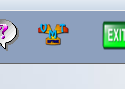
On the server, you can run the program like normal then click on the VMT Icon
Next, click on the button at the bottom of the screen, 'Get Newest Update for Digital Wrench'.
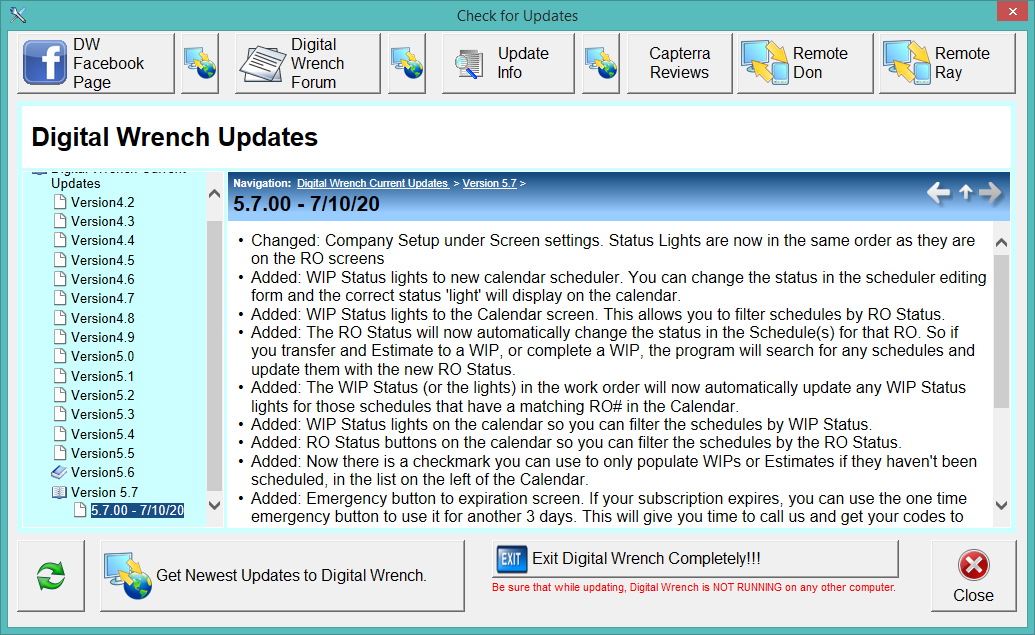
Notice you can see all documented updates here. If you don't see a version more advanced that what you have, do NOT click on the get newest updates button. We may be testing an update. If the documentation isn't there for a newer version, don't try and get it.
Once you click on Get Newest Updates, the update will download and install onto your computer.
Workstations need to be updated a little differently. Because they access the data on the server, and the servers data has been updated, it is possible to lose data by running a different version on the workstations. So to get to the update on the workstation, DO NOT RUN the program using the shortcut on the desktop. Go to the start menu of windows, scroll down to the D and run the Digital Wrench there. Or, in the Start Menu go to the Digital Wrench Folder and run the 'Update Workstations Only'.
It is imperative that the workstations have the same Version as the server where your data is located. If you aren't sure about this, please call us first and we'll walk you through it until you're comfortable.