|
<< Click to Display Table of Contents >> 5.6.01 - 3/10/20 |
  
|
|
<< Click to Display Table of Contents >> 5.6.01 - 3/10/20 |
|
Version 5.6.01 - March 23, 2020
•Fixed: Serial Numbers were not printing on Invoice16 unless they were related to a vehicle in the master file. Now it prints the serial numbers if you just type them in or select them in the part on the RO. It still prints the serial#, year, make, model if the serial# is related to a vehicle.
•Fixed: Serial Numbers were not printing on Report Manager Invoices unless they were related to a vehicle in the master file. Now it prints the serial numbers if you just type them in or select them in the part on the RO. It still prints the serial#, year, make, model if the serial# is related to a vehicle. VMTInvoice116.rpt has been modified to show you how to print the serial#.
•Fixed: When printing a serial# on a report manager invoice, if it is blank, a space would be there instead. So as a workaround, we just put the serial# right on top of the part# and part description. We added a linefeed to the serial# so if there is something there, it will print on the next line, but if it's blank, there will not be a blank line. Tricky, but it works.
•Added: Image Signing Function. This function when called shows the following screen:
o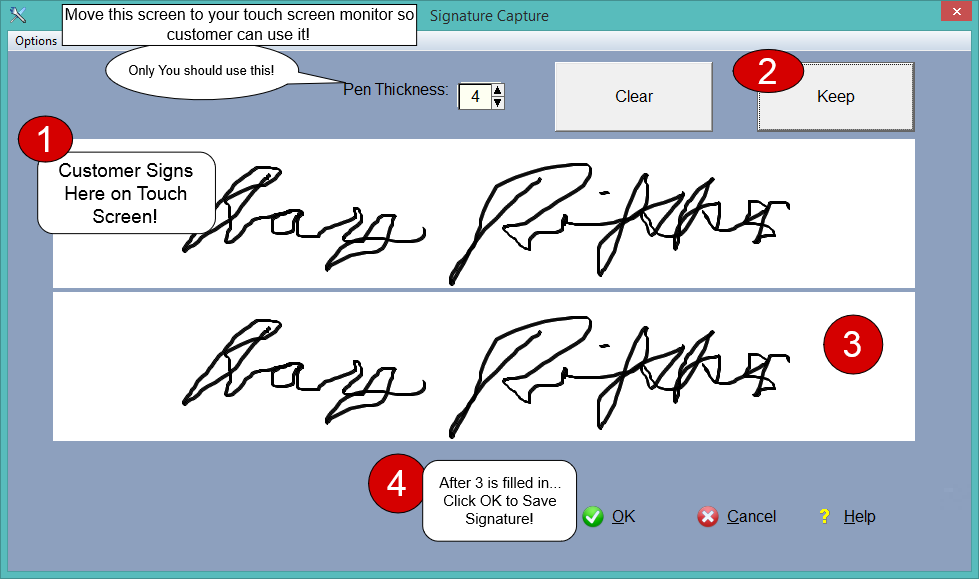
oThe signatures are just image files that are stored in the wrench\images folder (Usually. Set the image path in Company Setup/Each Computer/Images Folder). The path (file name) of the image is stored in 2 different files.
oOne of the files is the Revise Estimate log. To find this, edit the RO then click on the Revise Estimate Times, then click on the big button Estimate Revision Log. You can add a signature in the log directly, or just add it from the RO screen. The icon is in the bottom left corner of the screen. This signature would be for approving a repair order. Remember, only the signature file names are being stored in the database, not the actual images.
oThe second place you could sign is when taking money, on the receive money screen. Image names are stored in the payments file.
oThe name of the file looks like this:Sig-000119I-20200323-134635.png. The filename consists of 000119 which is the RO#, 'I', which means it was an Invoice Payment, 'R' would be a revision log signature, 20200323 which is YYYYMMDD, and 134635 which is a number that represents time of day to the 100th of a second. That way all of your signatures will be in order of RO#, then date and time.
oYou can move this screen to your capture screen (needs to be a touchscreen) for your customer. After that it will automatically show up on the other screen. I signed here with my trackball, and as you can see it's a terrible signature. (I'd be better signing with an X)
oHOW TO: The customer will sign in the top area, then press Keep, then OK. They can press Clear if they don't like their signature, before they press OK.
oYou can adjust the Pen thickness to suit, and it will remain that way. Normally customers won't change that.
oSince the actual images themselves are stored separately on your computer, you will need to backup that images folder to an external device. At this time the backup program (included with Digital Wrench) does not include images.
oSignatures can be printed on the Invoice printout. Currently only the built-in Invoice16 has a signature capability. It will print the last signature from the revised estimate log. Report manager invoices can print the last signature in the payment log or the last signature in the Revision Log (or both). See VMTInvoice116.rpt as an example. If you choose to show revised estimate logs on the invoice, the signatures are printed to the right of the log(s). Same with the payment logs.
•Added: An option to have the Credit Card Fee default to On.
•Added: A safety message. If there is a credit card fee, and when paying there is no money in the credit card field, the program will ask you about it and let you cancel the transaction.
•